

Chapter 3 of 5
The development loop
Keep your external Odin editor and Godot's authoring editor open. Edit the
source under the configured native/subsystem roots; save scenes, Resources,
GDScript and assets in godot_project_root. Accepted build directories are
immutable snapshots, never the place to author your game. Commands below use
the sdk and project paths from Getting started.
Save, build and observe
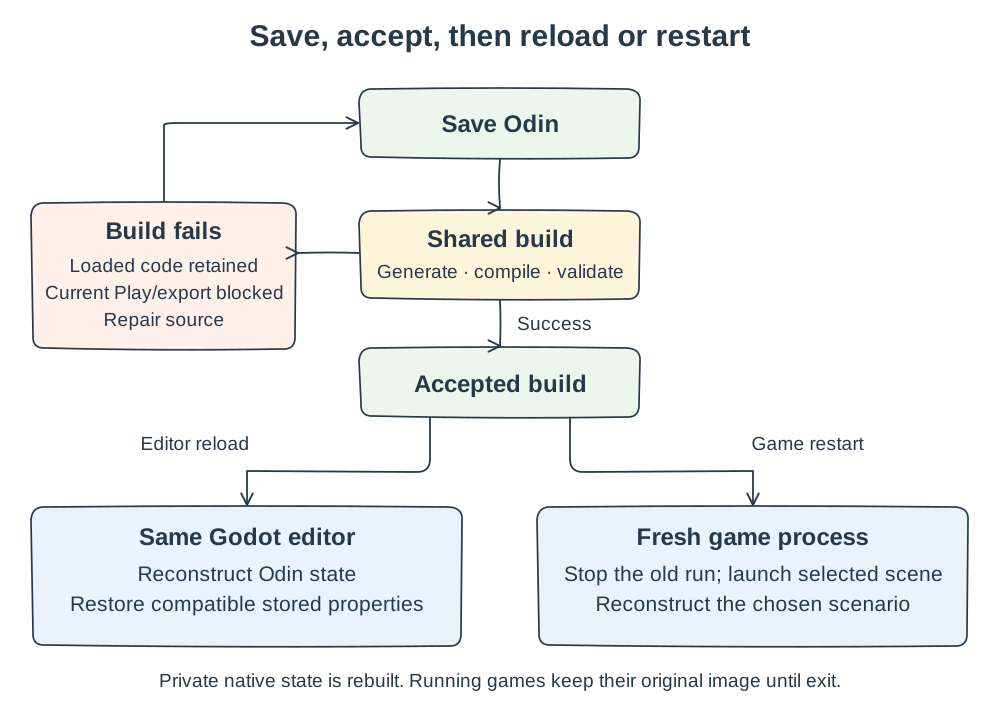
Open the configured project normally in Godot. The installed add-on watches relevant Odin saves and groups nearby changes into a build. On success, Gododin accepts the new build and reloads compatible native code in the same editor process. The dock distinguishes your source, the last successful build and the version currently loaded in the editor; wait for activation before testing a change.
 Open image at full size
Editor reload preserves Godot object identity and compatible stored values. A launched game changes code only by restart; both paths use the same build owner.
Ripple Pond's damping is restored into new Odin state after editor reload;
its private grids are reconstructed, not migrated. Body, property and ordinary
layout edits participate in the compatibility check. An incompatible edit or
failed activation produces a diagnosed recovery/restart state. Preserve your
unsaved scene/Resource work through Godot's normal save/discard/cancel controls
before a required restart. The reload contract
owns the detailed preservation and restart rules.
You can build explicitly without opening an editor:
"$sdk/bin/gododin" build --project-root "$project" --profile debug
"$sdk/bin/gododin" build-state --project-root "$project"
build captures the whole configured project and stages generation inside
its own transaction. generate publishes an inspectable catalog/docs/bridge;
check verifies that projection without changing it. Neither is a compulsory
manual prelude to every build. Unchanged native stages reuse authenticated
caches when only scene or GDScript files change.
Try it: change the result
Continue from the revision exercise.
Keep Godot's editor open through gododin editor, and leave the game displaying
native code v1 running. In declarations/ripple_pond.odin, change only the
method's returned number:
return 2Save and watch the Gododin dock. Once the build succeeds and activates, the editor has the new native code. Your already running game continues to show native code v1 because its libraries stay loaded until that process exits.
Stop the game normally and press F5 again.
The new game should show native code v2. You have completed the whole
edit → build → restart → observe loop while keeping your authoring editor open.
The saved damping value remains 0.991; the new game creates fresh simulation
buffers and welcome splashes. A stored property survives reconstruction, while
private simulation state starts again.
If the text is missing, check that the HUD line is inside _process after its
existing assignment. If it still shows v1 after relaunch, check that the build
succeeded and that you edited the configured source copy. The failure-repair
steps below cover a compiler error. Keep any exercise methods you added when
continuing; removing a published method later follows the guide's identity/rename
contract.
Restart a game deliberately
Use Godot's Stop, then Run Project or Run Current Scene. The native gate builds/syncs current source before Godot launches its chosen scene and GDScript debugger. The game keeps its original code until that process exits. If the dock requests an editor restart, save and reopen the project normally. Connection settings, SDK relocation and deliberate SDK upgrades are available in the dock.
For automation, the equivalent CLI path remains:
Stop the running game normally, then relaunch:
"$sdk/bin/gododin" run --project-root "$project" --scene res://main.tscnrun builds the chosen profile and launches its current accepted snapshot.
Ripple Pond reconstructs flat water and the welcome splashes in _ready;
choose scene, seed and settings explicitly for more complex scenarios. A
running process keeps its original native image even if the editor reloads.
The launcher prints GODODIN_RUN_IDENTITY before execution with engine hash,
native profile, build ID, source revision, publication and SDK release. It
forwards stdout/stderr and the game's exit status. --env NAME=VALUE supplies
application environment values; launcher-owned toolchain/identity names are
refused. Arguments after -- go to the game's user arguments, not engine flags.
Use the CLI's usage output for the full launch grammar.
Run an application test
Ripple Pond's oracle drives the native node and the preserved GDScript implementation through the same splashes:
"$sdk/bin/gododin" run --project-root "$project" --headless \
  --script res://tests/oracle.gd
It requires byte-identical frames at six checkpoints over 600 steps, six
signal deliveries and a successful exit. Look for
GODODIN_RIPPLE_ORACLE_PASS and zero Host owners at shutdown. This checks the
simulation and signal delivery. A bounded
scene smoke run uses --headless --quit-after 120; frame count is a stop
condition, not a wall-clock deadline. Use gododin run for your application's
tests; gododin test is for repository validation.
The example README owns its
local harness modes.
Navigate and debug
Edit the authored package and pure subsystem, rather than generated thunks.
Use your external editor's completion and go-to-definition for the native
package and its SDK imports. The generated API documentation and gododin doc
provide lookup alongside the code. Language-server and debugger configuration
belong in the setup guide.
For native debugging, build debug, locate that accepted publication through
build-state, and use its native library and matching symbols (dSYM on macOS,
PDB on Windows). With native debugging configured, attach to the relevant
Godot process, set a source breakpoint in ripple_pond_step, and select the native arm to
reach it. Resolve captured source paths back to your authored tree using the
artifact's source provenance. After a reload, confirm the breakpoint resolves
against the newly loaded binary/symbol pair; stale symbols do not explain new
code. GDScript debugging remains on the Godot side.
Repair a failed build
- Read the source-linked compiler diagnostic and repair the authored file. In an open editor, the previous loaded version remains available while current Play/export are blocked; a failed save never silently launches it.
- Save again and wait for a successful build and editor activation. For a
CLI session, run
buildand the application test again. - If the normal editor cannot open current native code, use
"$sdk/bin/gododin" editor --project-root "$project" --recovery. This opens a labelled diagnostic shell with no game content or project native code. Repair the source there or in your external editor, close the shell normally and reopen with"$sdk/bin/gododin" editor --project-root "$project".
For deliberate stale local inspection, the sole override is:
"$sdk/bin/gododin" run --project-root "$project" --last-known-goodIt remains visibly stale and must match that publication's profile. Export
has no stale override. clean removes only Gododin-owned generated/build/cache
state and preserves local configuration and managed tools; it refuses while
an authoring editor owns the project. Fix the diagnosed conflict first rather
than deleting directories or modifying an SDK payload.
Next: Common patterns, or Shipping and updating.